Sunday AV Guide
For the Sunday sound, video and lights operators. Follow the steps in order. If something looks wrong and you are not sure what to do, stop and ask before you change it. Anything marked "NOT YET DOCUMENTED" is still being written.
Start here: first steps for the sound person
- Log in to the Mac Mini (password: video) and open Wing Edit.
- Check that De-Feedback is ON (MainStage opens by itself; see the De-Feedback section below).
- Grab one of the tablets, open Mixing Station, and connect to the mixer labeled "FoH Mix".
- Open the tablet's web browser and go to the Companion buttons: http://10.20.30.50:8000/tablet
Starting the service at the end of the countdown: see Start Service Sound.
De-Feedback (every Sunday)
MainStage opens by itself on the Mac Mini and loads Alpha Labs De-Feedback.
- Every Sunday, check that De-Feedback is ON.
- If it is off, press the "Turn DFB On" button on Stream Deck / Companion page 1, 2nd row, 4th button to toggle it. The button label shows "Turn DFB On" or "Turn DFB Off".
1. Microphones on the Wing console
The sound console is a Behringer Wing. The wireless mics reach the Wing over the network (Dante). Every channel has its name on the console, so you find a mic by its name.
Mic names you will see
- HH1, HH2 – host handheld mics (for whoever is hosting or leading).
- Vocals 1–6 – singer mics.
- HW1, HW2 – headworn mics (worn on the head, with the mic by the cheek).
How to find a mic
- Find the channel name on the Wing (for example "HH1" or "Vocal 3").
- Ask the person to talk or sing into that mic.
- Watch that channel's meter.
During the service
2. Tracks computer (Tracks, click, guide, bass)
The Tracks computer plays the stereo Tracks, the click and the guide for the band. Bass usually comes from the Tracks computer over Dante. If there's a live bass player, swap the Bass channel's input (see below).
To turn the Tracks up or down in the room, use Wing ch 24 (Tracks). Ch 24 belongs in the Band DCA (DCA 4), so it moves with the band. You don't need to touch the Tracks computer itself.
- On the Wing, find ch 24 (Tracks).
- Use its fader to set how loud the Tracks are in the room.
- To move the whole band (Tracks included), use the Band DCA (DCA 4).
Live bass player? Swap the Bass channel's input
- On the Wing, select ch 21 (Bass).
- Open the channel's input / source settings.
- Change the main source from MOD 5 (Dante, Tracks bass) to AES50-A 46 (SD16 input 14).
- Ask the bass player to play, and check that ch 21's meter moves.
- After the service, switch the main source back to MOD 5.
3. Wing Edit user pages and speaker volumes
Wing Edit has "User" pages that group channels so they are easy to find.
- User 1 = all microphones.
- User 2 = all instruments.
- Open Wing Edit on the Mac Mini (password: video).
- Tap User 1 to see every microphone.
- Tap User 2 to see every instrument.
Speaker volumes (Wing Main|MTX page)
The speaker volumes are on the Wing's Main|MTX page. Use it to turn the lobby up or down, or to balance the room speakers.
- MTX 5 "Lobby" – the lobby volume.
- MTX 6 "EV Stage Send" – the two EV speakers near the stage (near house left and near house right).
- MTX 7 "EV Side" – the EV speaker far house right (SD16 Out 6). SD16 Out 5 is planned as its left side, for when an EV replaces the far house left Turbosound.
- MTX 8 "TS Mains" – the Turbosound mains. For now this includes the far house left Turbosound.
- MTX 1–4 – not used (no names, faders down).
- Main buses: Main 1 "Mains", Main 2 "TS Subs", Main 3 "Record", Main 4 "Mix Minus".
4. Stage box (SD16) inputs and outputs
The SD16 is the stage box. The drum mics and instruments plug into it, and it sends them to the Wing. SD16 inputs 1–16 show up on the Wing as AES50-A sources 33–48. These are source numbers, not channel numbers (for example, the kick is AES50-A 33 but sits on Wing ch 25). The SD16 outputs 1–8 come from Wing AES50-A outputs 17–24.
Backup stage box (S32): There's also a Behringer S32 stage box inside the IEM rack. Use it if the SD16 runs out of channels or has problems. The S32 is AES50 channels 1–32 on the chain, which is why the SD16 starts at 33 from the Wing's point of view.
Full input and output tables, with color coding: SD16 Patch (Sound). Plug-in sheet: SD16 Setup Crew.
5. Wireless microphones
The wireless receivers are three Shure SLXD4Q+ quad receivers (4 mics each) in the booth rack. They send the mics to the Wing over Dante.
| Receiver | Mics |
|---|---|
| Top | HW1, HW2, Pack, Ac Gtr. Pack = spare: never used, could become HW3 or a 2nd guitar. No Wing channel yet. |
| Middle | Vocals 1–4 |
| Bottom | Vocal 5, Vocal 6, HH1, HH2 |
- MD mic: Normally the MD (music director) uses wireless Vocal 6 when there aren't 6 vocalists.
- Need a 3rd host mic? Use the Vocal 5 mic. Vocal 5 and Vocal 6 also feed ch 5 (HH3) and ch 6 (HH4), so the Vocal 5 mic can be run as HH3.
6. Video: LED wall setup
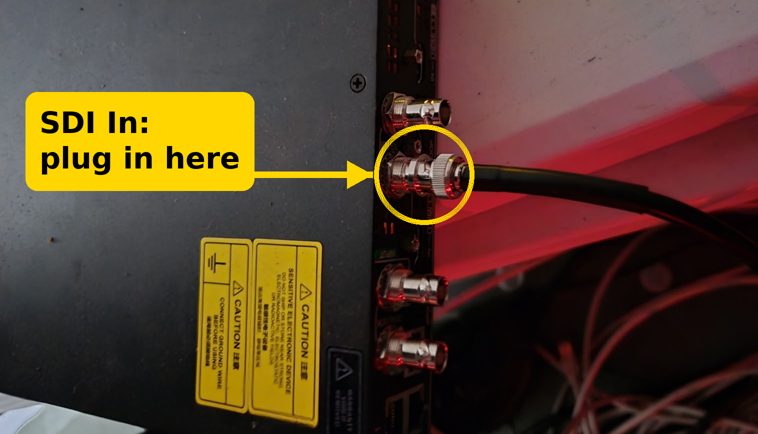
Run the 30 ft black SDI cable from video rack patch panel jack 4 to the NovaStar's SDI input behind the LED wall.
Then load the NovaStar preset on the COEX MX20 front panel:
- On the home screen, press the knob to open the main menu.
- Turn the knob to Preset and press it.
- Turn to "Artisan Church" and press to load it. There is no extra confirm screen.
Where the SDI cable plugs in (back of the NovaStar): the highlighted jack. Don't use the other jacks.
7. Shutdown and pack-away
- Shut down the lighting Mac properly. The Mac runs LightKey (the lighting software). Use Apple menu > Shut Down. Don't just pull the power.
- Wait until the Mac screen is fully off.
- Unplug everything and pack it away.
- Coil every cable over-under (see below). Take extra care with looms (bundles of several cables).
How to coil a cable "over-under"
Over-under stops cables from twisting and tangling, so they lie flat next time.
- Over: Hold the cable end in one hand. Make a normal loop and lay it in that hand.
- Under: For the next loop, roll the cable slightly between your fingers so it flips the other way, and bring it up from underneath. Make it the same size as the first loop.
- Repeat: Keep going over, under, over, under, until you reach the end.
- Tie it: Close the coil with its tie or velcro. Don't wrap cables around your elbow.
Troubleshooting
- Main or lobby volume seems wrong? Check that the Turbosound main and lobby speakers weren't swapped. Auditorium (far house left) speakers use channels 15 (main) / 13 (sub); lobby speakers use 12 / 12. See the Turbosound page.
- De-Feedback not working? It relies on DVS (Dante Virtual Soundcard). Make sure DVS is started on the Mac Mini.
- Companion buttons missing? Reopen http://10.20.30.50:8000/tablet.
- Turbosound has no sound? See the "If no sound" steps on the Turbosound page.
8. Future: Wireless Workbench (rare)
Not needed on a normal Sunday. This has only been needed once so far.
Wireless Workbench is Shure's software for the wireless mics. This section will cover: how to open Wireless Workbench, how to run a frequency scan, and how to sync all devices back.
9. Still to document
- Wing show file and input list for today's service (to be sent later).
- Call time and doors time.
- Power-up order.
- Wing: move the SD16 Out 5 slot from Bus 11 L to MTX 7 "EV Side" L (on the to-do list).
- Dante Controller subscriptions (see the Advanced section).
10. Advanced: Dante and routing reference (for rebuilds)
For the sound person, or anyone rebuilding the Wing setup. You don't need this on a normal Sunday.
Wing Dante inputs (MOD)
| Dante MOD | Source | Wing channel |
|---|---|---|
| 1 | Click | ch 33 |
| 2 | Cues | ch 34 |
| 3–4 | Tracks (stereo) | ch 24 |
| 5 | Bass (from Tracks) | ch 21 |
| 7 | Pad | ch 23 |
| 9–10 | HW1 / HW2 | ch 1–2 |
| 12 | Acoustic Gtr (wireless "Ac Gtr") | ch 19 |
| 13–16 | Vocal 1–4 | ch 7–10 |
| 17–18 | Spotify | ch 39 |
| 19–20 | ProPresenter | Not used. ProPresenter audio comes in over USB for now because Dante had problems (to fix someday). |
| 21 | Vocal 5 | ch 11 Vocal 5 and ch 5 HH3 |
| 22 | Vocal 6 | ch 12 Vocal 6, ch 6 HH4 and ch 14 MD Talkback |
| 23–24 | HH1 / HH2 | ch 3–4 |
| 25–26 | Spotify 2 (laptop music) | Wing channel not listed yet |
Dante output 5 = MTX 5 "Lobby" (L).
SD16 output routing
| SD16 Out | AES50-A | Feeds | Wing source |
|---|---|---|---|
| 1 | 17 | IEM 9 Left | Bus 9 L |
| 2 | 18 | IEM 9 Right | Bus 9 R |
| 3 | 19 | IEM 10 Left | Bus 10 L |
| 4 | 20 | IEM 10 Right | Bus 10 R |
| 5 | 21 | Planned: EV far house left (not in use yet; the Turbosound is on MTX 8 for now) | MTX 7 "EV Side" L (planned). Wing still on Bus 11 L – to-do. |
| 6 | 22 | EV far house right | MTX 7 "EV Side" R (stereo with Out 5) |
| 7 | 23 | EV near house left | MTX 6 "EV Stage Send" L |
| 8 | 24 | EV near house right | MTX 6 "EV Stage Send" R |
Matrices (Wing Main|MTX page)
| Matrix | Name | Feeds |
|---|---|---|
| MTX 5 | Lobby | Lobby speakers (Dante output 5 = MTX 5 L) |
| MTX 6 | EV Stage Send | SD16 Out 7 (L) = EV near house left, SD16 Out 8 (R) = EV near house right |
| MTX 7 | EV Side | SD16 Out 6 (R) = EV far house right. SD16 Out 5 (L) is planned, for when an EV replaces the far house left Turbosound. |
| MTX 8 | TS Mains | Turbosound mains, including the far house left Turbosound for now |