Pre-Service Countdown (ProPresenter + ATEM)
For the slides operator. Do these steps the FIRST time the countdown runs before service. Numbers on the photos match the steps.
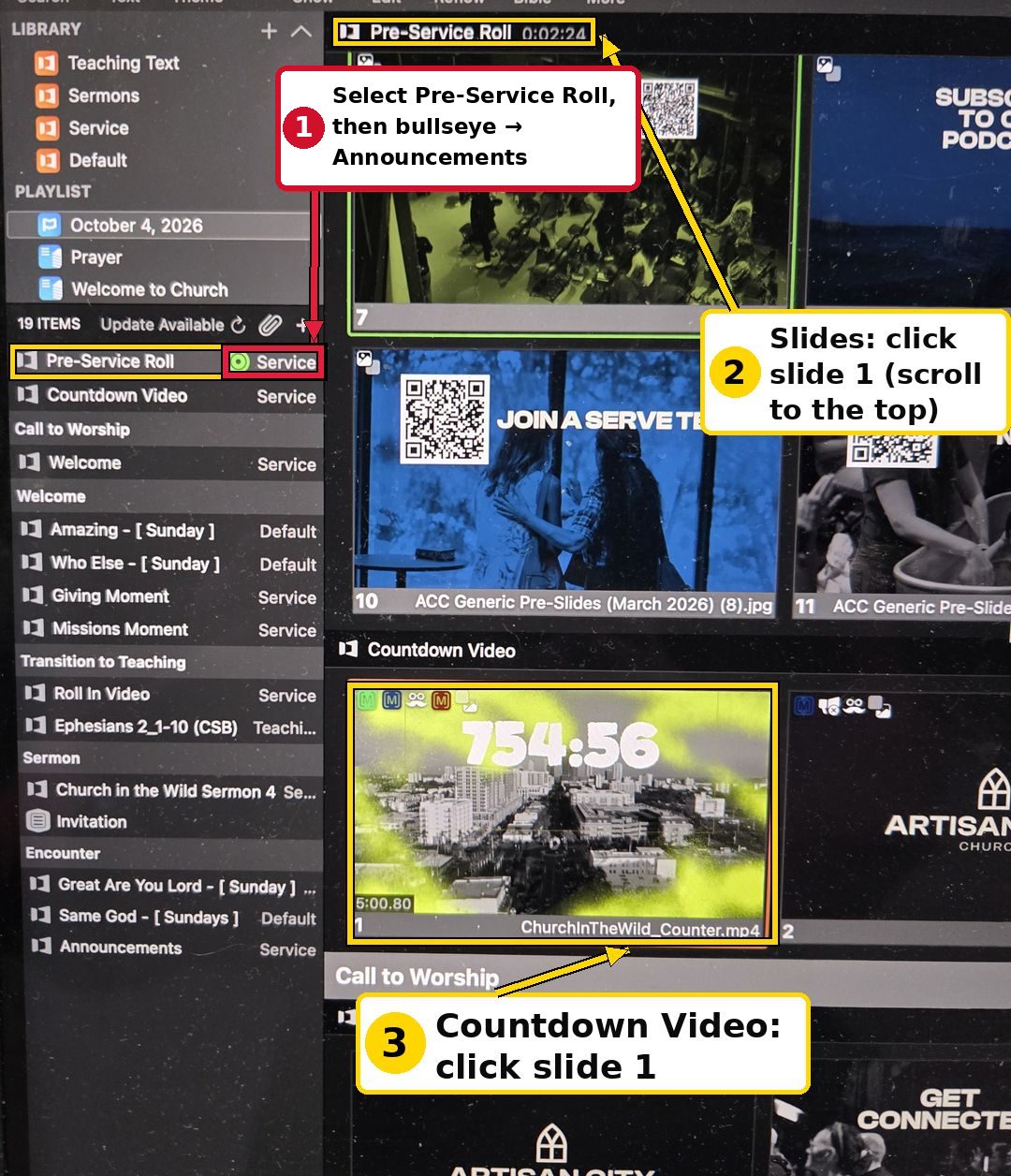
1 Put Pre-Service Roll on the Announcements layer
Where: ProPresenter, left sidebar, under PLAYLIST: click this Sunday's playlist (it's named with today's date).
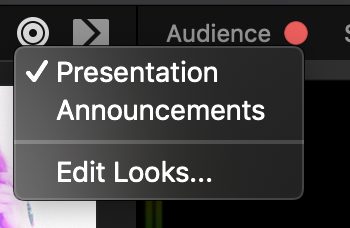
Select Pre-Service Roll. Then click the Destination Target button (the bullseye icon at the top right of the presentation) and choose Announcements.
2 Start the announcements
When it is time for announcements: in the Pre-Service Roll slides (main area), scroll to the top and click slide 1.
3 Start the countdown
Scroll down to Countdown Video. Click slide 1, ChurchInTheWild_Counter.mp4 (5:00.80). It plays on the regular layer.
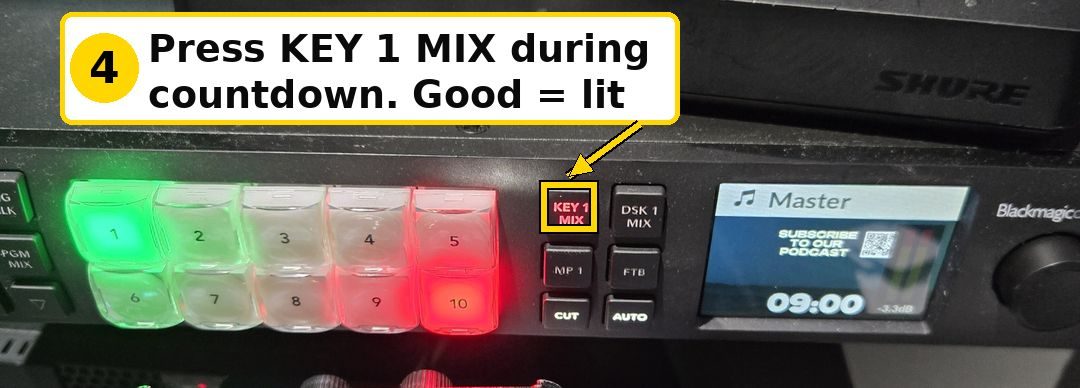
4 Key 1 Mix on the ATEM: clock on the TVs
On the ATEM switcher (button group right of the numbered buttons, top-left), press KEY 1 MIX during the countdown. This adds the clock to the bottom of the TVs.
✓ What good looks like
- The countdown video plays on the LED wall.
- The announcements keep rotating on the TVs at the same time.
- KEY 1 MIX is lit; the clock is at the bottom of the TVs.
⚠ Quick fixes
- Announcements stop when the countdown starts? Pre-Service Roll is probably not on the Announcement layer. Go back to step 1, then click slide 1 again (step 2).
- Service started but slides show on the TVs, not the LED wall? The Look is still on Split instead of Default. Use the Looks button at the top of ProPresenter to switch to Default.
- LED wall blank? Check the SDI cable from video rack jack 4 and the NovaStar preset (see AV Guide, section 6).