Your In-Ear Mix (Mixing Station)
For musicians. Control only your own in-ear (IEM) mix from your phone or tablet. First-time setup takes about 5 minutes – do it before rehearsal, not during the service.
Your mix = the number on your pack. Your pack says IEM 3? Choose IEM 3 in the app. Check it every Sunday, since your pack may have changed.
1. Get the app & get on the Wi-Fi
- Install "Mixing Station". iPhone/iPad: App Store. Android: Google Play. Windows/Mac: mixingstation.app. Look for Mixing Station (by Mixing Station GmbH / dev-core).
It costs money to connect. The download is free, but you must buy the WING license in the app (one-time; App Store lists it at US$6.99). On the Behringer Wing entry, tap Buy Pro. A license only works on the platform you bought it on (iPhone license won't work on Android).
- Join the church Wi-Fi "Artisan Production". Your phone must be on the same network as the WING. For the Wi-Fi password, ask the Production Lead.
2. Know your IEM number
Your IEM number = the label on TODAY'S pack.
- Each pack is labeled with its mix: IEM 1, IEM 2, IEM 3... Your pack says IEM 3? Your mix is IEM 3.
- IEM 1–8 = the wireless Shure PSM packs. IEM 9–10 = the wired Behringer units.
- Check it every Sunday. You may get a different pack than last week. Picking someone else's number changes their ears.
3. First time: add the mixer & pick your mix
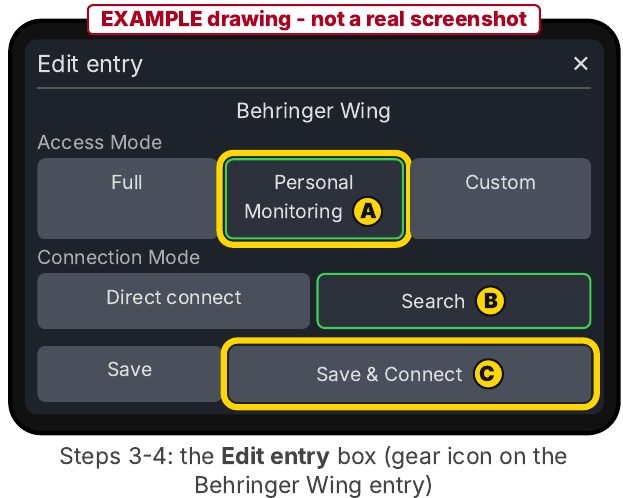
- Open the app, find "Behringer Wing". You'll see the Mixers list. Not there? Tap Add Mixer and choose Behringer Wing.
- Pick YOUR mix on this first screen – before you connect. Where you select (or add) the Behringer Wing, pick IEM + the number on your pack (IEM 1 to IEM 10).
- Tap the gear icon on the Behringer Wing entry. The Edit entry box opens. Under Access Mode tap Personal Monitoring (A). Under Connection Mode tap Search (B). Only if search doesn't work: tap Direct connect and type the address – ask the Production Lead.
Good: Personal Monitoring has a green outline. - Tap Save & Connect (C), pick the mixer. The app lists the mixers it found. Usually it's just "Artisan Rack" – tap it. More than one? Ask the audio engineer which mixer is running the system today (sometimes the full console is brought in instead of the rack).
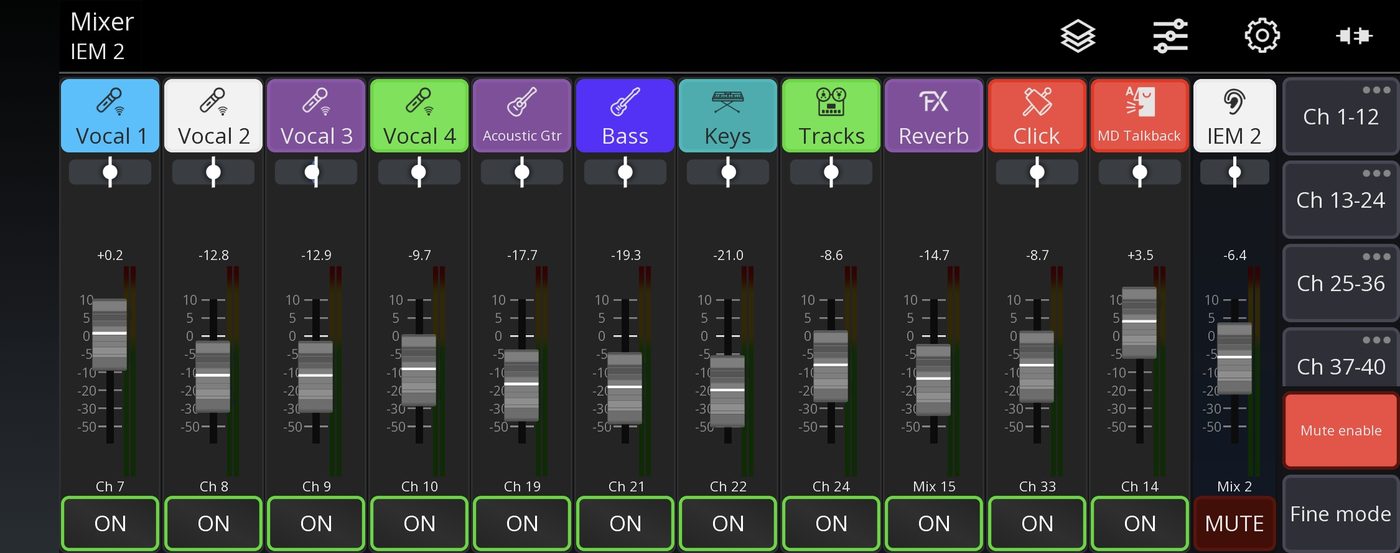
Good: the mixer opens, and the fader on the right is your IEM number.
What good looks like: Real WING names on the faders (Vocal 1, Keys, Click...). Meters move when people play. Your IEM fader (e.g. IEM 3) is on the right side.
iPhone tip: The first time you open Mixing Station, it asks for permission to access the local network. Tap Allow. Then fully close the app (swipe it away) and reopen it. The permission doesn't take effect until the app restarts. Check later: Settings > Privacy > Local Network.
4. If your pack changes later
- Disconnect. Go back to the Mixers list (disconnect, or close and reopen the app).
- Pick the NEW mix on the first screen. Where you select the Behringer Wing, choose the IEM that matches today's pack.
- Reconnect. Gear icon > keep Personal Monitoring > Save & Connect > pick the mixer.
What good looks like: the fader on the right says your new IEM number.
5. Make your own layer (one time)
A layer is the set of faders you see on screen. Make your own layer so you only see the channels you care about – no scrolling during a song.
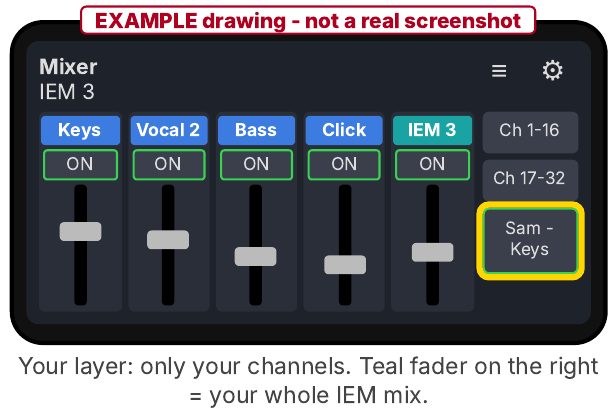
- Open Layers: App Setup (gear icon in the top menu) > Layers tab.
- Tap + to add a new layer (top right). A new layer appears at the bottom of the list. Tap its Edit button (gear).
- Give it a name you'll recognize in Layer Setup, like "Sam – Keys".
- Add only your channels: your instrument, your vocal, the vocals you follow, Keys, Click, MD Talkback. Leave Target Mix on Any (it then follows your IEM).
- Put them in order: your channels show at the bottom of Layer Setup. Drag them into the order you like (for example: you first, Click last).
- Layers screen: move to top, set size. Back on App Setup > Layers: drag the handle of your new layer to the top of the list. At the top of the list, set the Channels per layer dropdown to Fit channels. Optional: turn off Visible for layers you don't need.
- Go back and pick your layer: tap back < (top left), then tap your new layer button on the right side of the mixer.
Good: only your channels, in your order.
Host & teaching mics: add Bus 13 "Mic Bus" – one fader for all of them, instead of the separate HH/HW faders. Singers: also add Bus 15 Reverb.
More than one layer is fine – split things up, e.g. vocals on one, band on another, Click / MD / extras on their own. Your layers are saved on your phone – still there next week, even if your IEM number changes.
WING channels you'll see
| Ch | Name |
|---|---|
| Bus 13 | Mic Bus (all host & teaching mics) |
| 7–12 | Vocal 1–6 |
| 14 | MD Talkback |
| 17 | Electric Gtr |
| 19 | Acoustic Gtr |
| 18 / 20 | Only for extra musicians or backup |
| 21 | Bass |
| 22 | Keys |
| 23 | Pad |
| 24 | Tracks |
| 25–27 | Kick, Snare, Hi Hat |
| 28–31 | Tom (28–30), Floor Tom (31) |
| 32 | Drum OH |
| 33 / 34 | Click / Cues |
| 40 | Talkback from the sound booth |
| Bus 1–10 | IEM 1–10: DON'T use. Never turn up or switch on – it adds someone else's in-ear mix into yours. |
| Bus 15 | Reverb: yes, especially singers. |
| Bus 16 | Delay: not recommended – it can throw off timing and fight the click. |
6. Band changed? Edit your layer
- Press and hold your layer button (right side of the mixer) to open Layer Setup. (Or: App Setup > Layers > Edit.)
- Add, remove, reorder. Add: tap the new player's channel. Remove: take the old channel out of the bottom list. Reorder: drag. Tap <.
What good looks like: your layer matches this week's band.
7. Build your mix the right way (start clean)
★ Do these steps in order – every time you build a new mix.
- Start with a clean slate: turn every channel in your mix all the way down.
- Your own channel to Unity (0 dB): your vocal mic or your instrument.
- Set your pack volume: turn the volume knob on your IEM pack until your own channel is at a comfortable level. This is your loudest channel.
- Add everything else, one at a time. Bring up each other channel you need to hear. Don't make anything louder than your own channel.
- Adjust: DOWN before UP. In rehearsal, when something needs to change, try turning other things down before turning anything up.
You = loudest (at Unity). Everything else sits under you.
Step 4 – don't forget the Reverb (singers especially). Set the Reverb fader (Bus 15) between -10 and -15 dB, under your own voice. It helps you sing in tune and comfortably – a dry voice in your ears feels harsh.
No reverb yet? That's normal: the sound person mutes the Reverb between songs, and it's post-fade, so you only hear it once the sound person unmutes it and the DCA is up. Missing during a song? Ask the sound person – don't crank your Reverb fader to make up for it.
No reverb yet? That's normal: the sound person mutes the Reverb between songs, and it's post-fade, so you only hear it once the sound person unmutes it and the DCA is up. Missing during a song? Ask the sound person – don't crank your Reverb fader to make up for it.
✓ Tips
- First: add Click/Cues (if you use them) and what you lock to (Kick, Bass, Keys).
- Click: just loud enough to lock in – not louder than the band.
- Less is more. Only add what you actually need to hear.
- Small moves – a few dB at a time. Tap just above or below a fader knob to nudge it.
- All quiet? Lower the others – don't push your own channel past Unity. Only then raise the pack.
- Check your pack every Sunday and match the app to it (section 4).
- Channel missing or distorted? Ask the sound person.
- EQ: each pack's mix has its own EQ. You can't change it in Personal Monitoring mode – ask the audio engineer for more or less bass or highs.
⚠ Quick fixes
- WING not found? On Artisan Production Wi-Fi? (iPhone) Local Network allowed? Then try Direct connect – ask the Production Lead.
- Names say "Ch 1, Ch 2" / nothing moves? You're probably Offline. Go back and connect again.
- Dropped out? iPhones disconnect when the screen turns off. Keep it on; reconnect.
⚠ Protect your hearing
- Pack volume down (low) before you put your earpieces in, then bring it up slowly.
- Keep it comfortable, not loud.
- Wear both earpieces – one ear makes you turn up much louder.
- Ears ringing or feeling "full" afterwards = too loud. Turn down next time.
- Loud pop or feedback? Pull the earpieces out, then tell the sound person.